[Free] How to Use LUTs in the DJI Mimo App | Easy Color Grading at No Cost
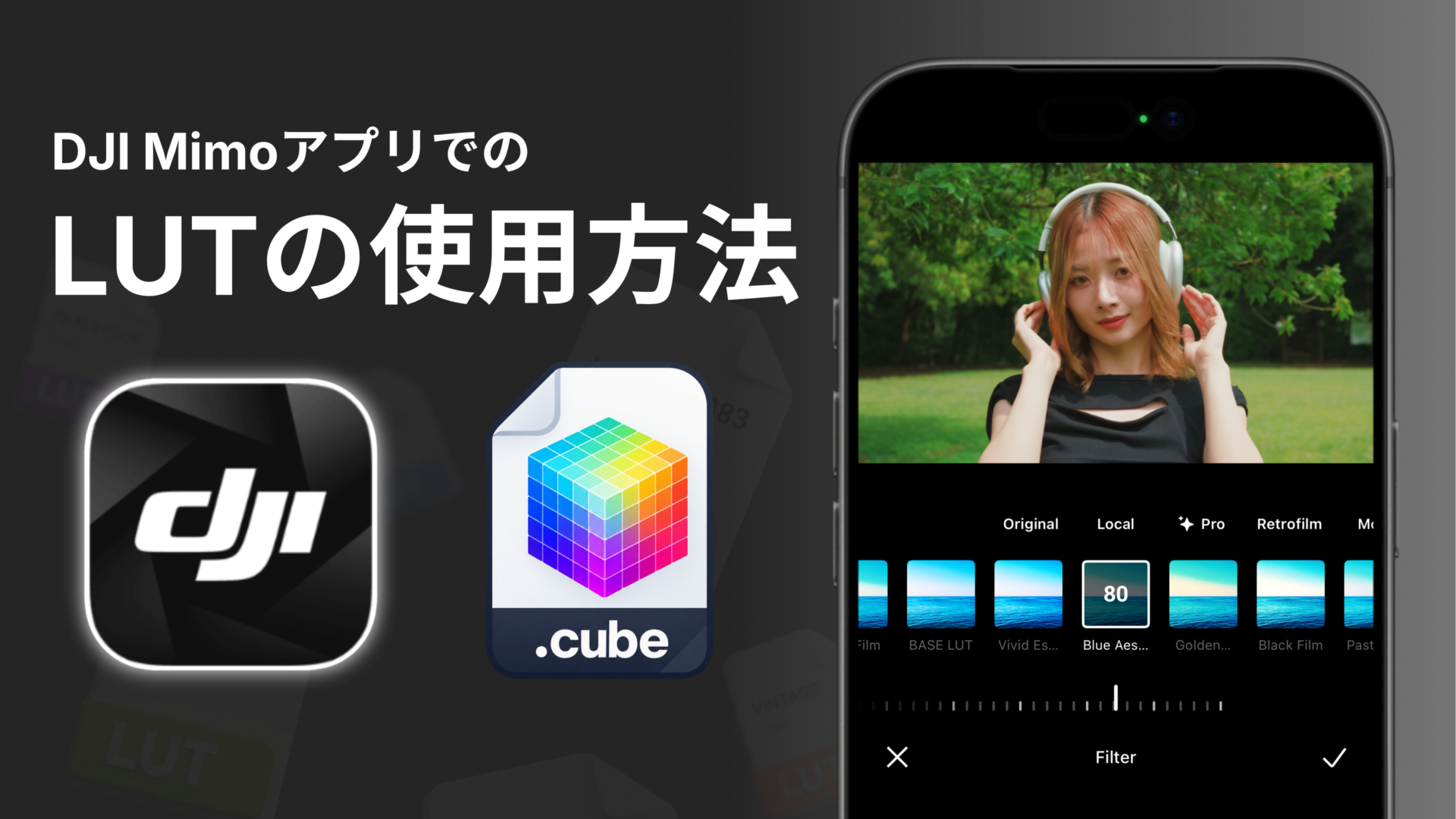
Many people assume LUTs are only usable with video editing software on a computer.
In fact, DJI’s Mimo app lets you do LUT-based color grading with nothing but your phone.
This guide walks through the whole flow, from downloading a LUT to applying it to your footage in DJI Mimo.
Contents
1. What Is a LUT?
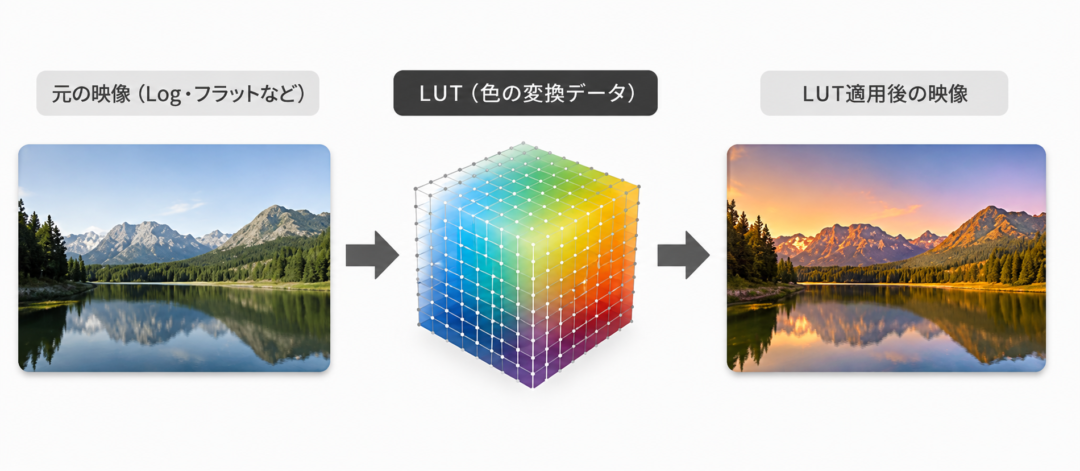
You can bring Log footage back to natural color, cool it down for a clearer feel, make an evening scene more striking, or move it toward the restrained tones of film.
What makes changing that mood of your footage so easy is a LUT. LUTs usually come as “⚪︎⚪︎⚪︎.cube” files, which is why they are also called cube LUTs.

With LUTs you can create a wide range of looks.
2. Download a LUT
Visual Park offers LUTs for a wide range of cameras. Besides LUTs for Log footage, many also work on footage shot with a standard picture profile. The steps for applying them are essentially the same.
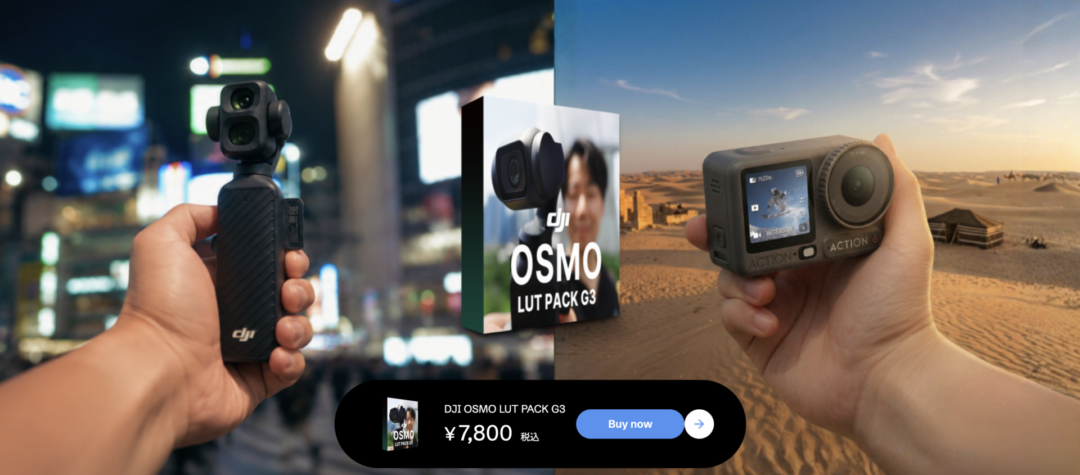
(Here we’ll use DJI OSMO LUT PACK G3, which works with the Osmo Pocket series and other cameras, as our example.)
3. Download the DJI Mimo App
App Store Or download the app from the official site
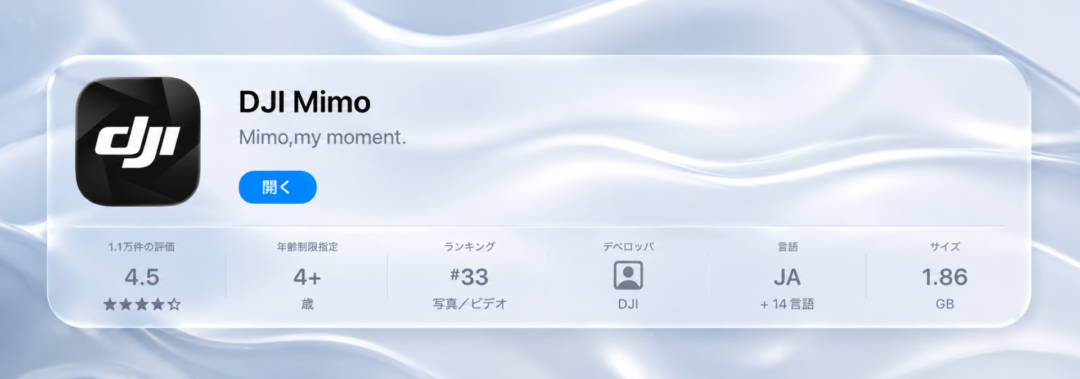
*The Android version of DJI Mimo is not on the Google Play Store, so you need to download it from the DJI Download Center.
4. Apply the LUT
[Step 1] Import your video
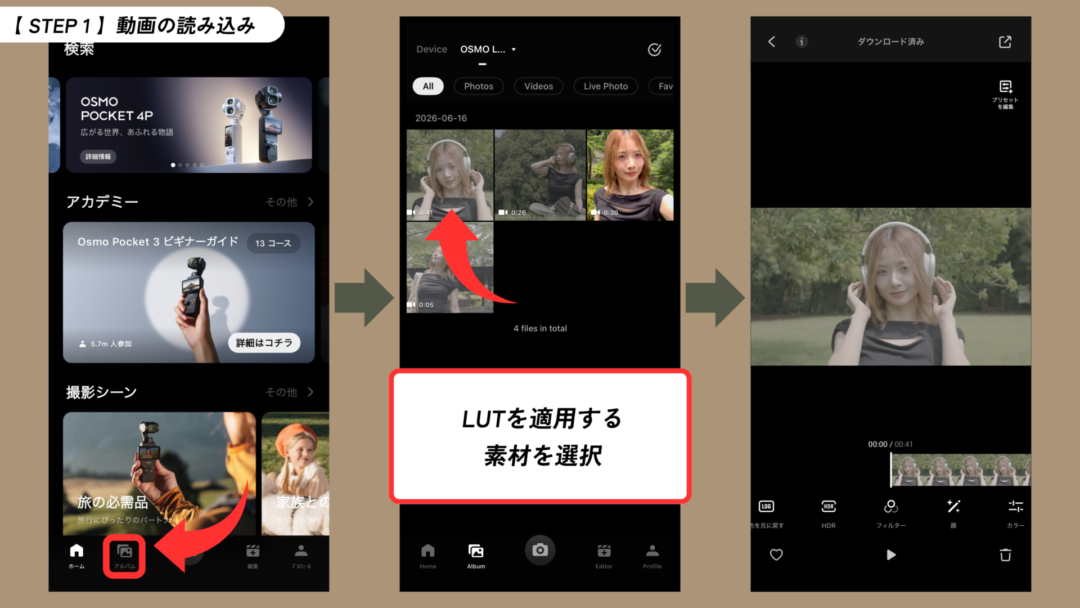
Start by importing the footage you want to grade into the DJI Mimo app.
[Step 2] Import the LUT
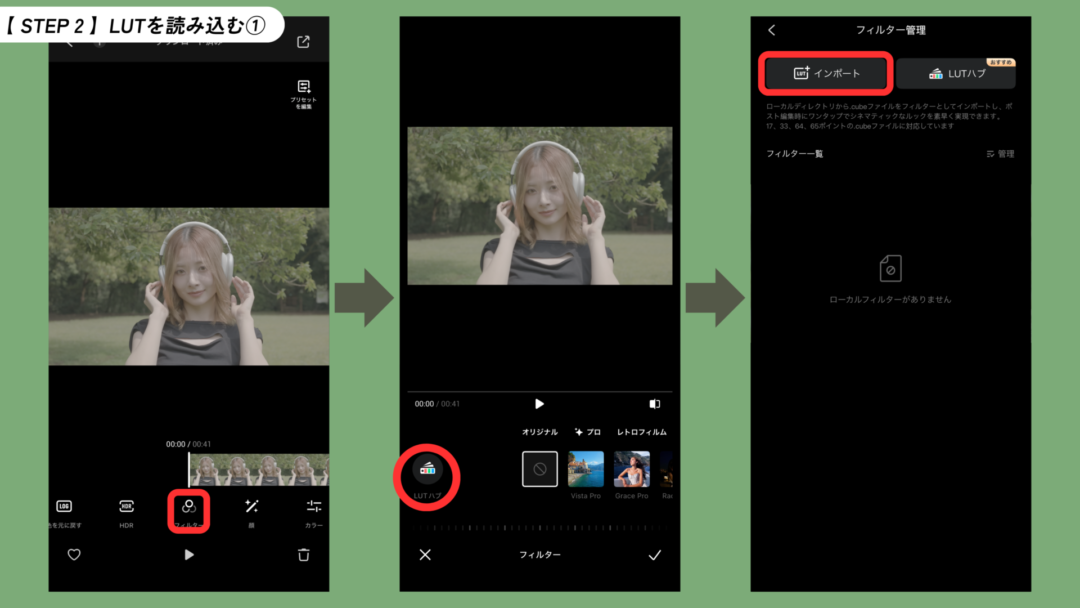
Import the LUT you want from the “Filters” tab.
[Step 3] Select the LUT
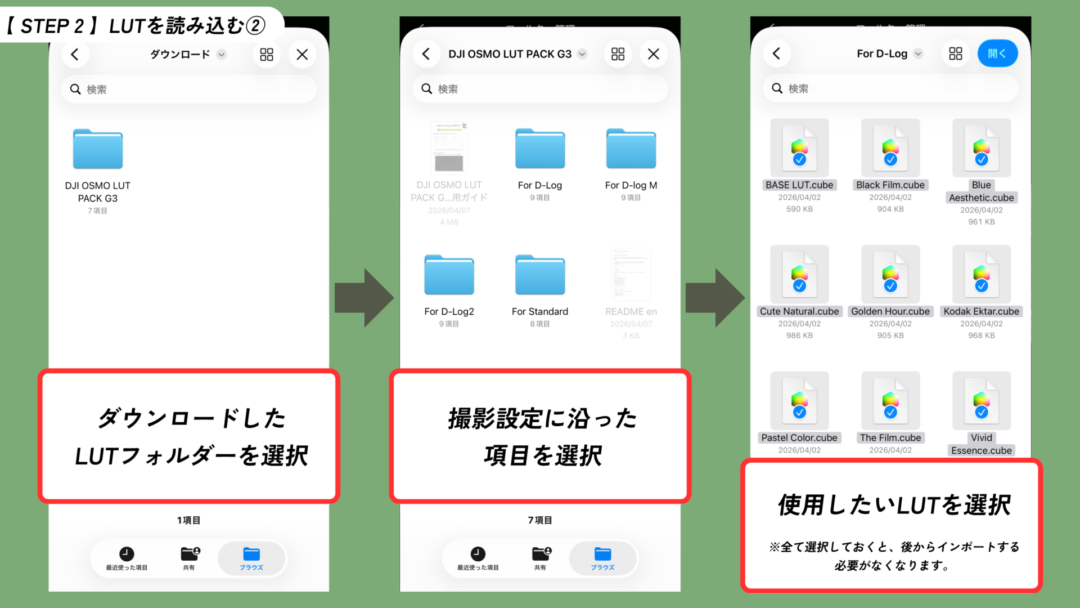
On iPhone, manage the files in the Files app.
[Step 4] Adjust the LUT
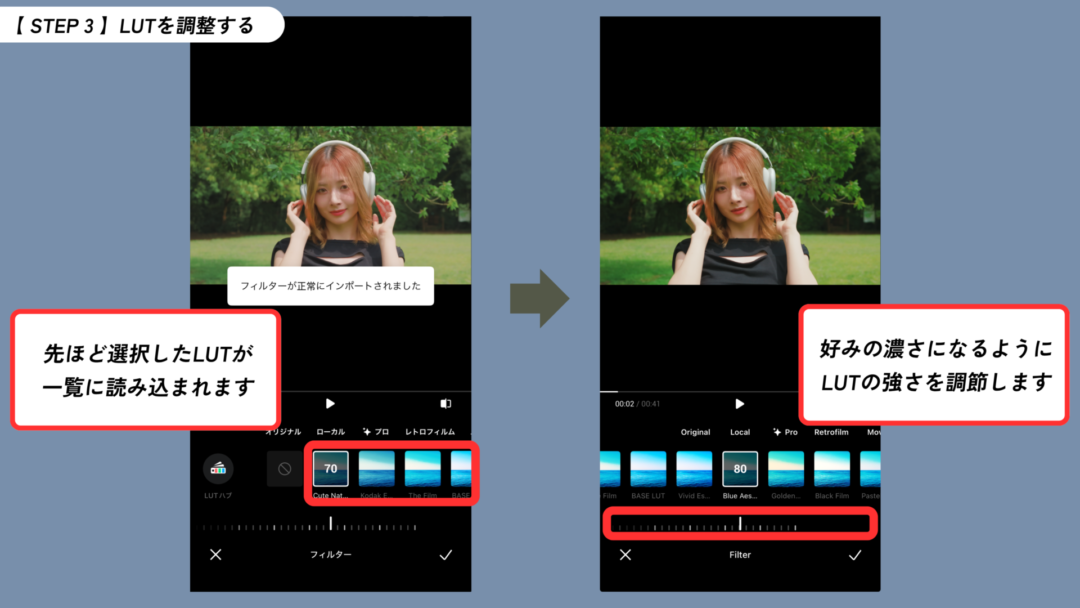
You can change the strength of the applied LUT to taste.
That covers the basics of applying LUTs in the DJI Mimo app. Try them on your own footage and find the look you like.