How to Use LUTs on iPhone | Easy Color Grading with PeekLUT
Those beautiful clips you see on social media and YouTube — you probably figure you need a real camera to shoot them, right?
In reality, even video shot on an iPhone can look completely different with just a little color work.
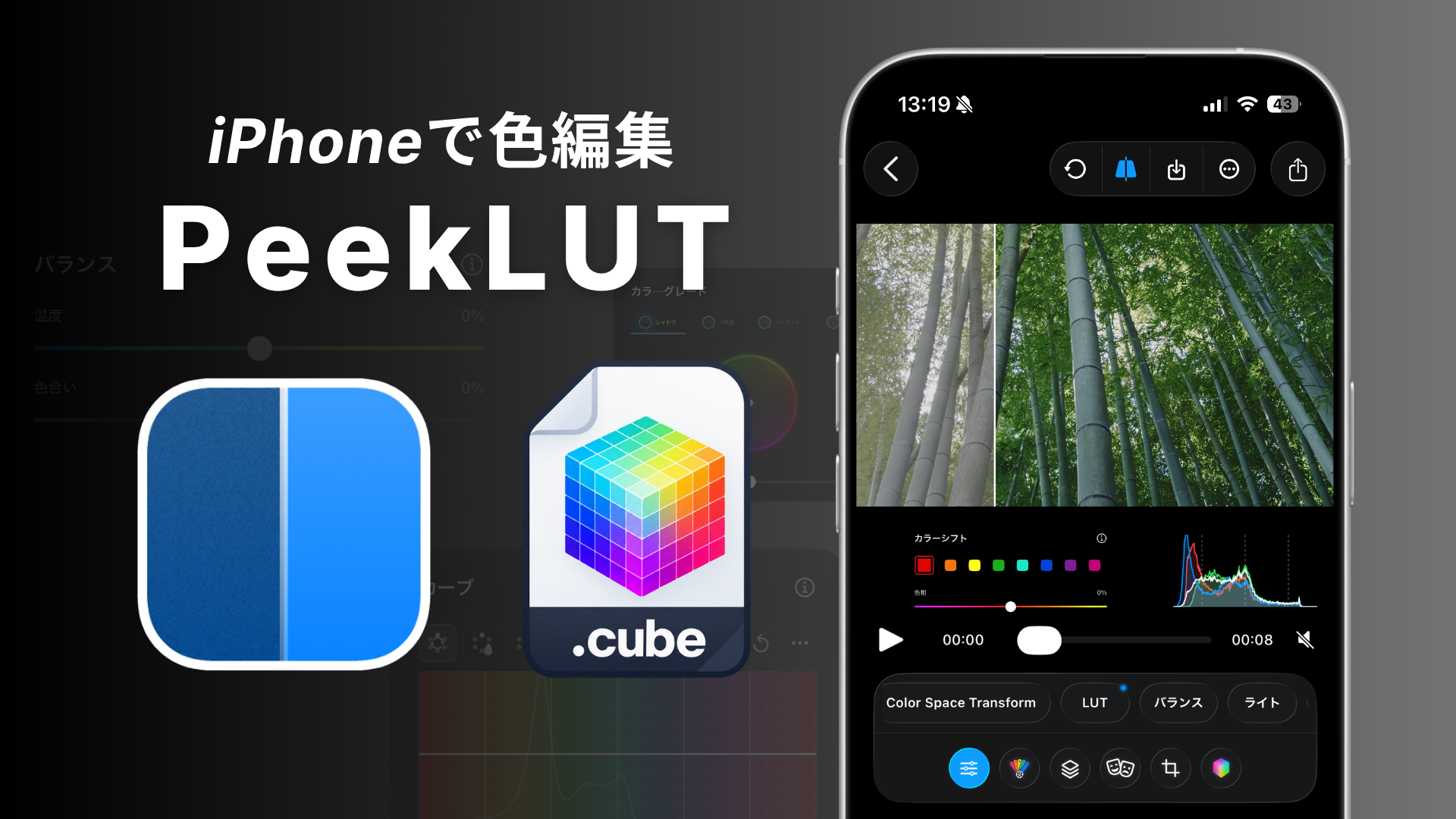
Here we’ll use an app called «PeekLUT» to actually change the color of a video.
PeekLUT lets you import and apply LUTs for free, with color editing that feels intuitive.
* Exporting video currently requires a paid plan (as of August 18, 2026)Download here
Contents
1. What Is a LUT?
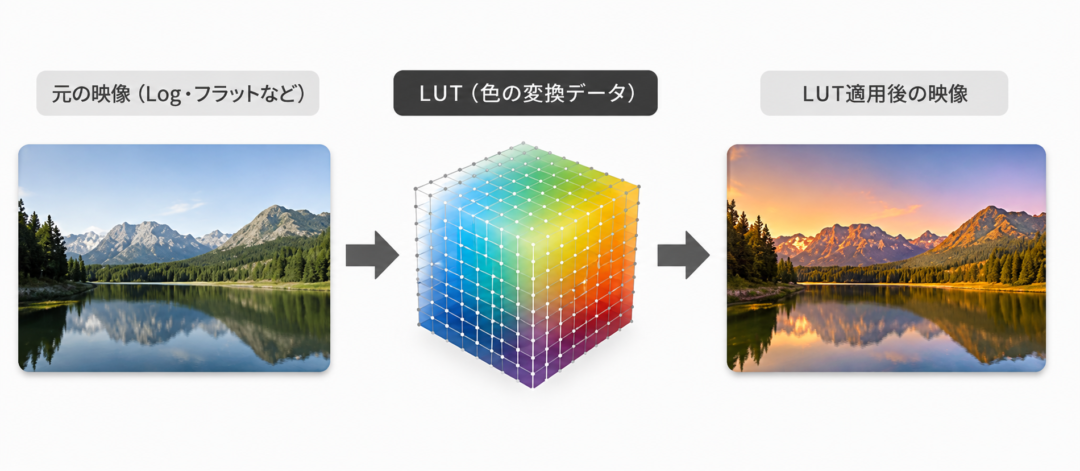
You might cool it down for a clearer feel, make an evening scene more striking, or move it toward the restrained tones of film.
The tool for creating that kind of mood is a LUT.
Think of it as close to an Instagram filter.
LUTs usually come as “⚪︎⚪︎⚪︎.cube” files, which is why they are also called cube LUTs.
2. Trying PeekLUT
[ STEP 0 ] Get your footage ready
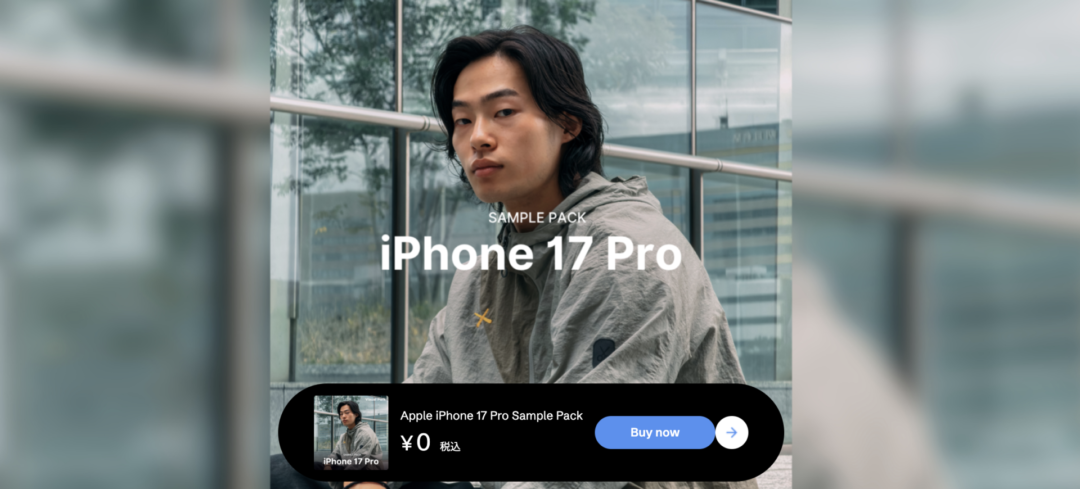
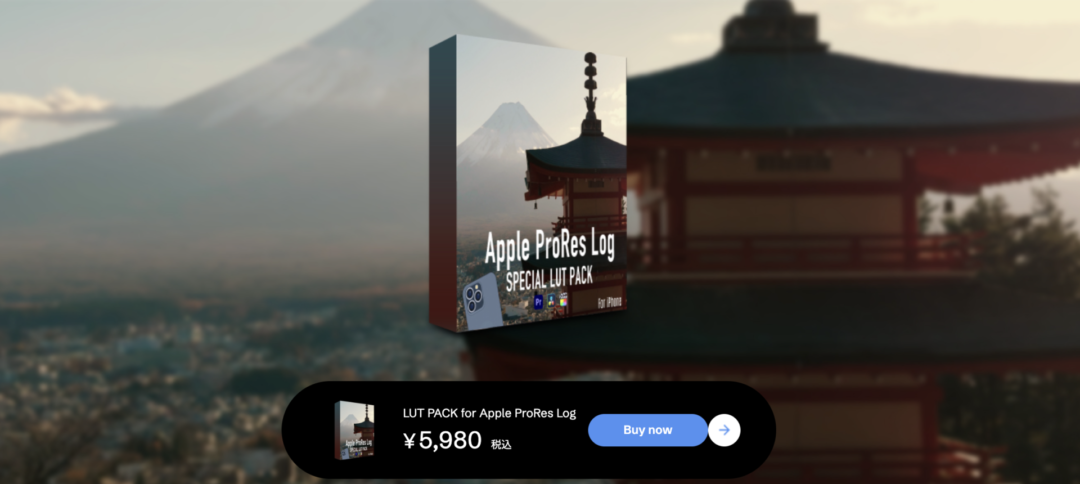
Here we’ll use “Log footage shot on an iPhone” and “LUT PACK for Apple ProRes Log” to walk through how to apply a LUT.
If you don’t have suitable footage, you can download sample material from Visual Park for free.
Of course, the same steps work with your own LUTs or the LUTs bundled with PeekLUT.
* Log recording is supported on the iPhone 15 Pro and later Pro models.
[ STEP 1 ] Import a LUT
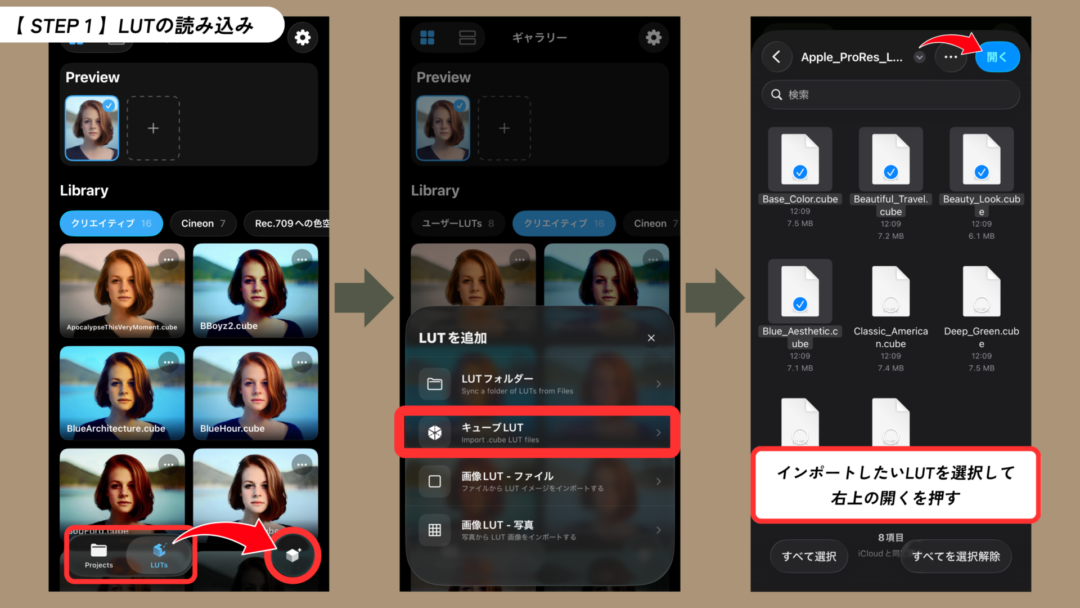
Launch the app, tap the cube icon at the bottom right, and import the LUT you want
[ STEP 2 ] Apply the LUT

Pick a clip from your videos, then choose a LUT.
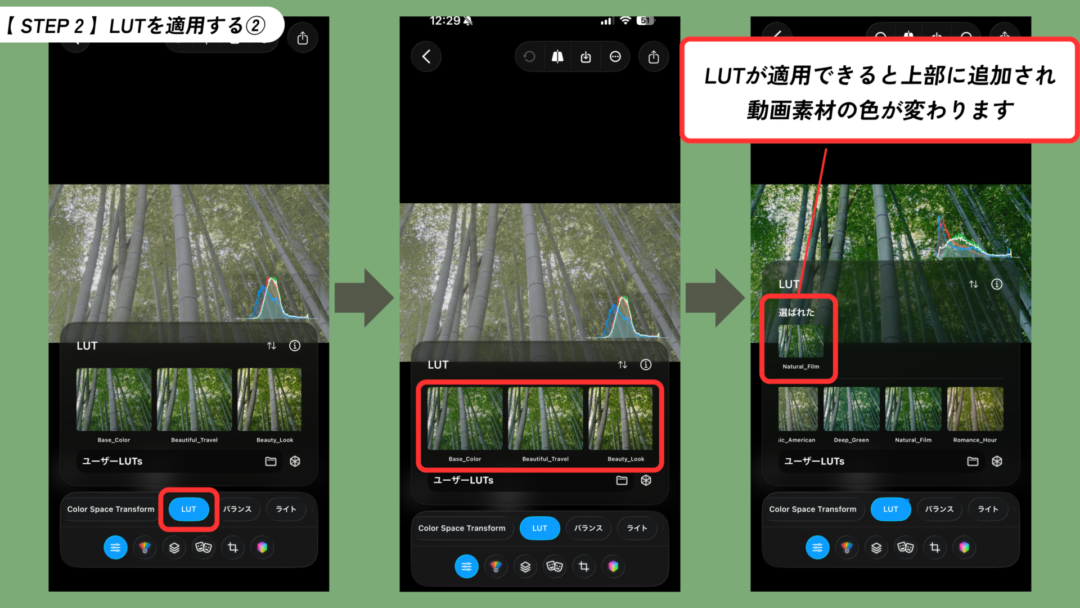
Select the LUT you imported.
[ STEP 3 ] Adjust the LUT and export
Applied at full strength, a LUT can look too heavy. If it does, dial the strength down.
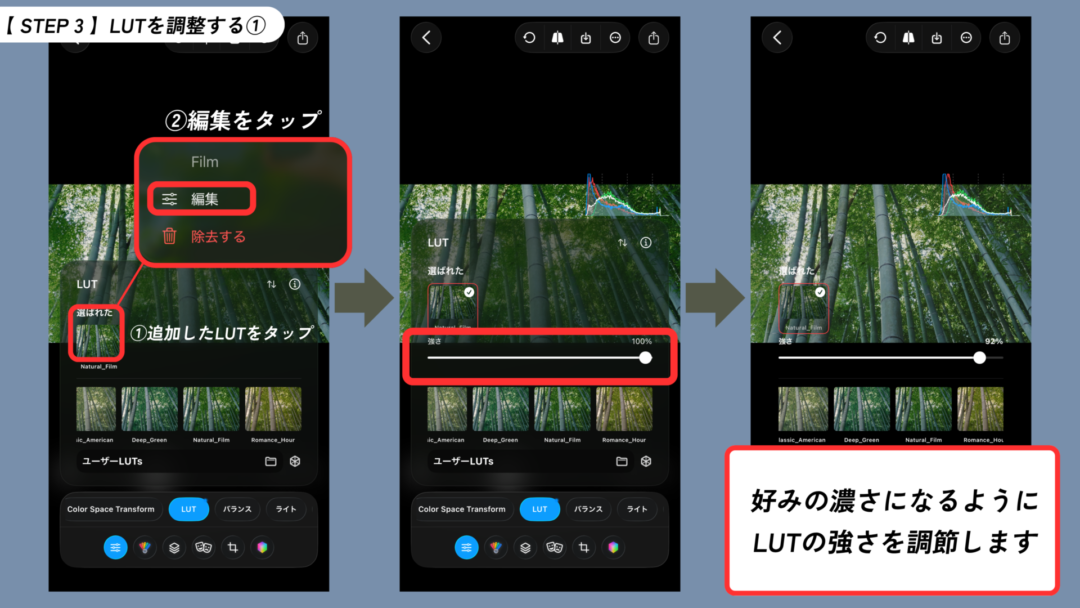
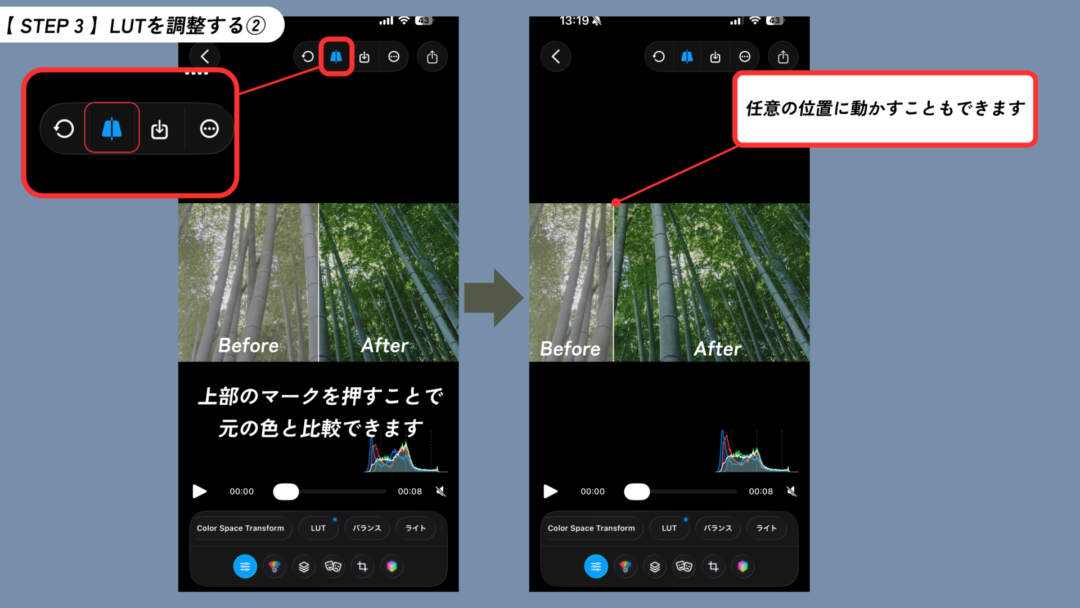
Once the LUT looks right, save the clip to your iPhone.
This appears to have become a paid feature (checked August 18, 2026).
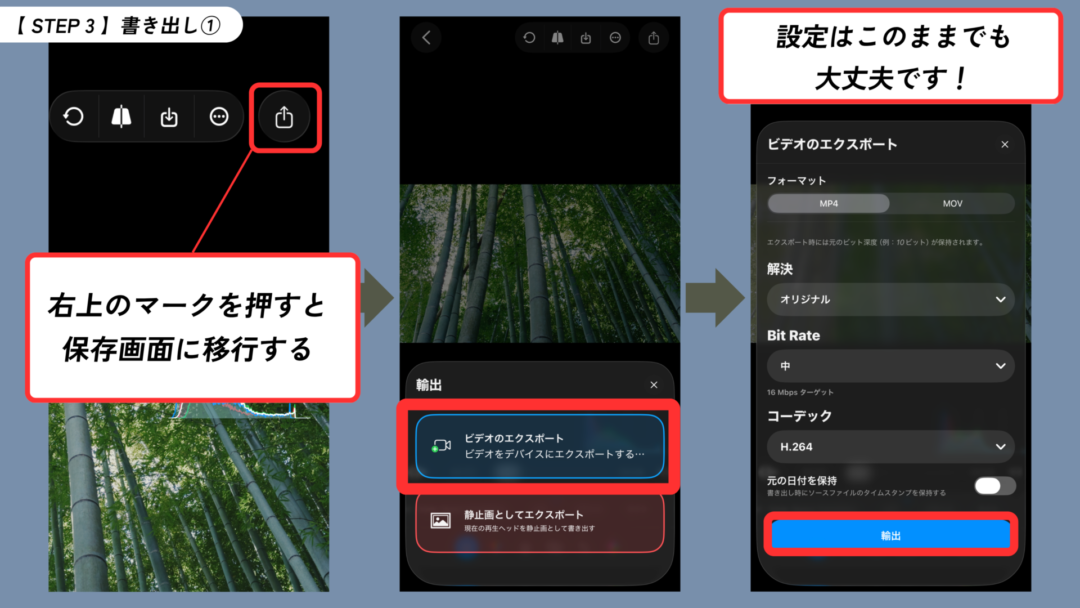
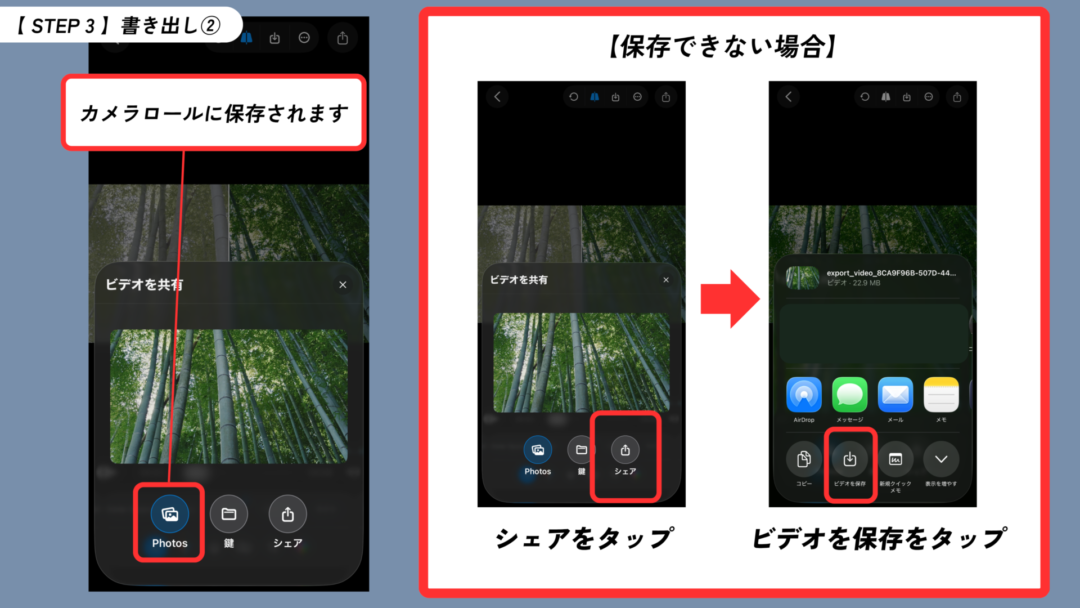
If saving doesn’t work, try saving via the share button.
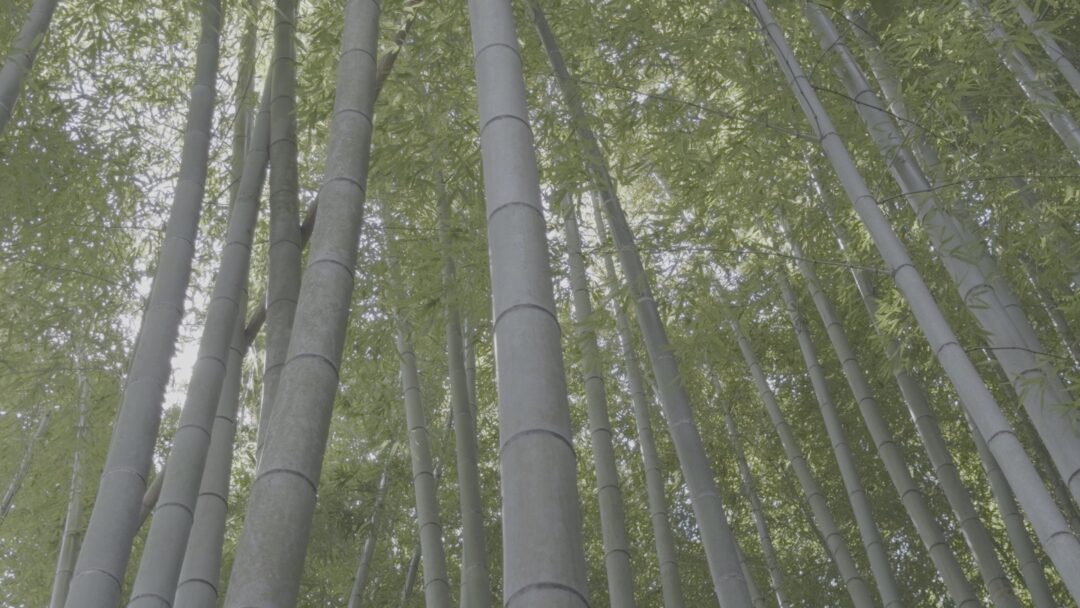
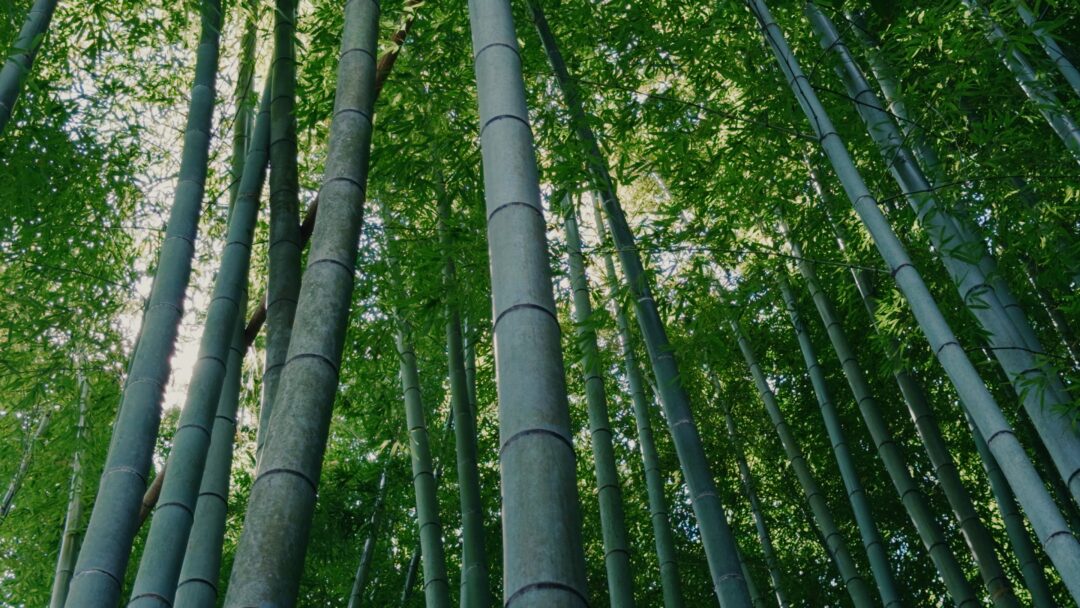
3. Pushing the Look Further
Combining several LUTs
PeekLUT lets you blend several LUTs rather than applying just one.
If you want your own look to come through, it’s worth the effort 💪
Here we’ll add one of the LUTs built into PeekLUT.
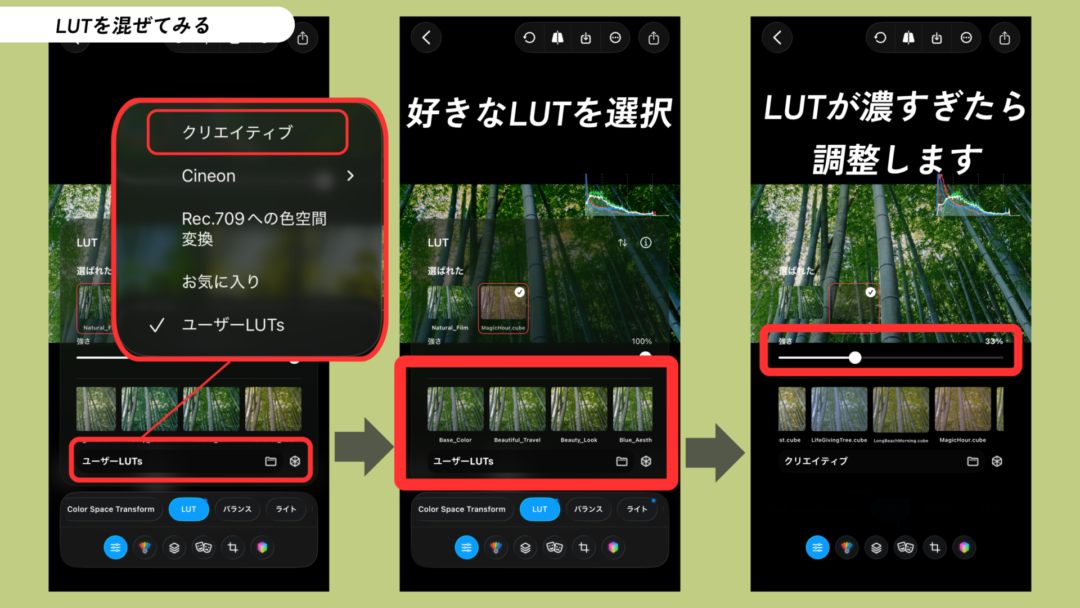
Layering a second LUT lightly over your base — around 15–30% — can be enough to set the mood.
There is no right answer, so layer them to your own taste.
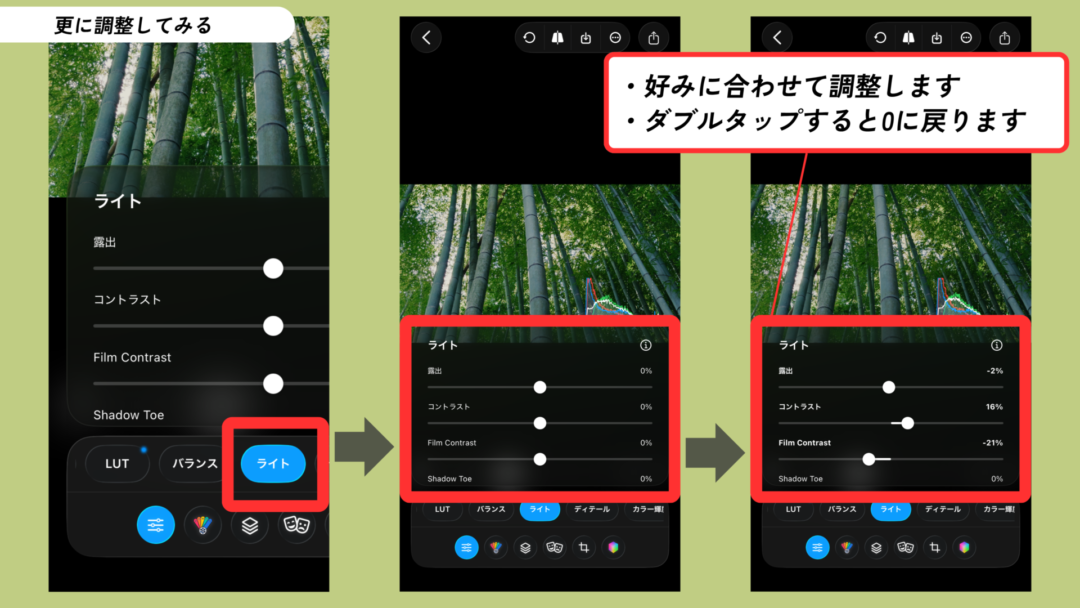
Fine-tuning the color
Many people adjust more than LUT strength — brightness, for instance.
You can adjust this under “Light”, so give it a try if you want to go further.
Nicely done.
Even an ordinary clip shot on an iPhone changes quite a bit with a little color work.
Too heavy? Ease it off. Too dark? Lift it a little.
Trust your eye and enjoy grading with LUTs.