How to Install DaVinci Resolve Plugins (.drfx)
Contents
1. Download the plugin
In this guide we walk through everything from installing the .drfx file to adding the fonts, step by step.
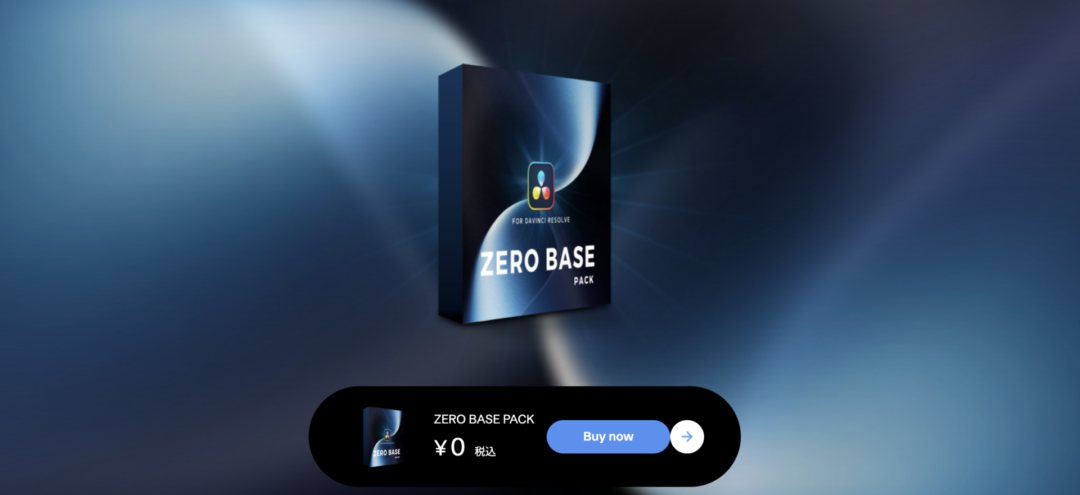
Visual Park also offers a free plugin called «ZERO BASE PACK».
The steps are the same for every product, so if you are curious, install it and follow along.
2. Installing the plugin
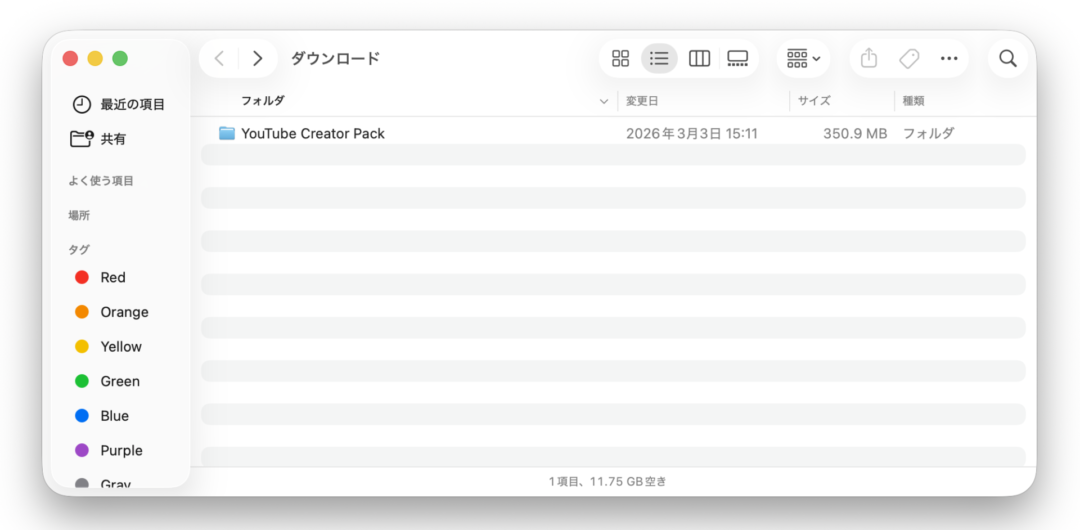
①Download the plugin from Visual Park
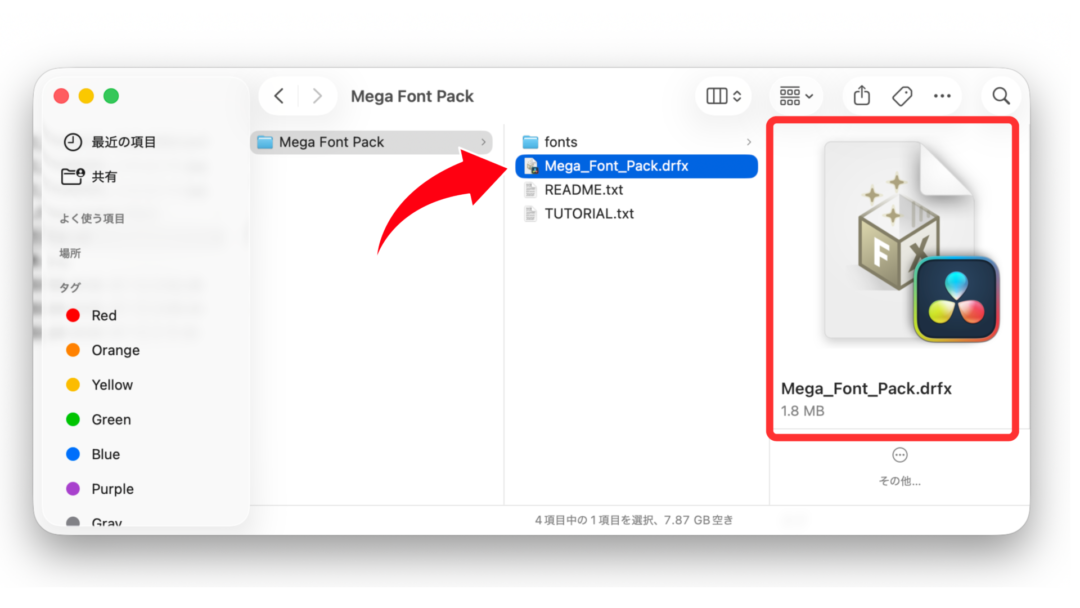
② Open the folder and double-click the “〇〇〇〇.drfx” file
③ When the dialog appears, choose “Install”
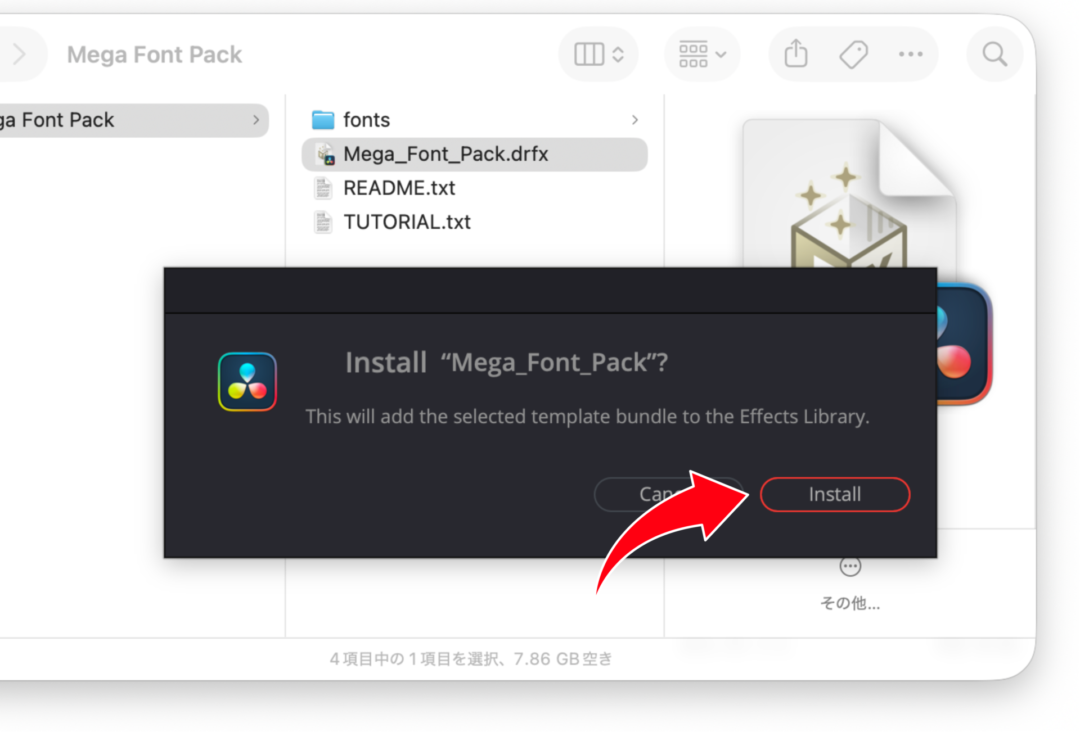
* If it is already installed, the button reads “Overwrite”
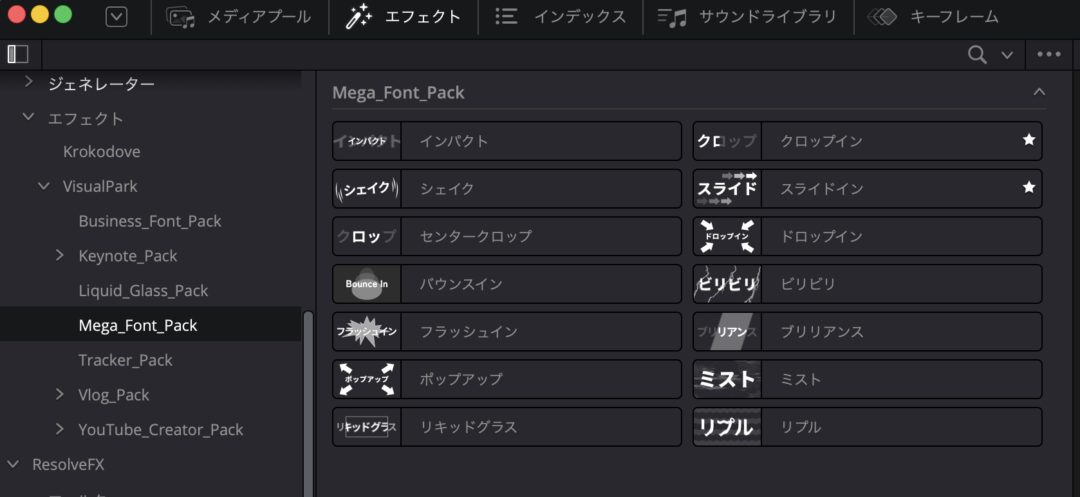
④ Restart DaVinci Resolve and the effect appears under Effects
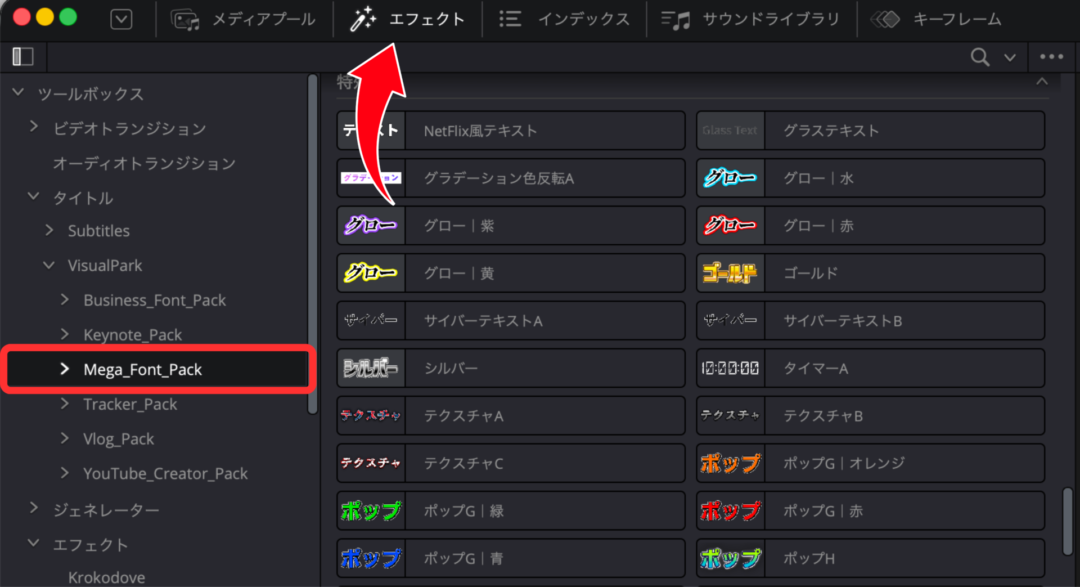
3. Installing the fonts

Certain plugins, such as “MEGA FONT PACK G2”, require you to install fonts as well.
① Open the “fonts” folder inside the folder you downloaded
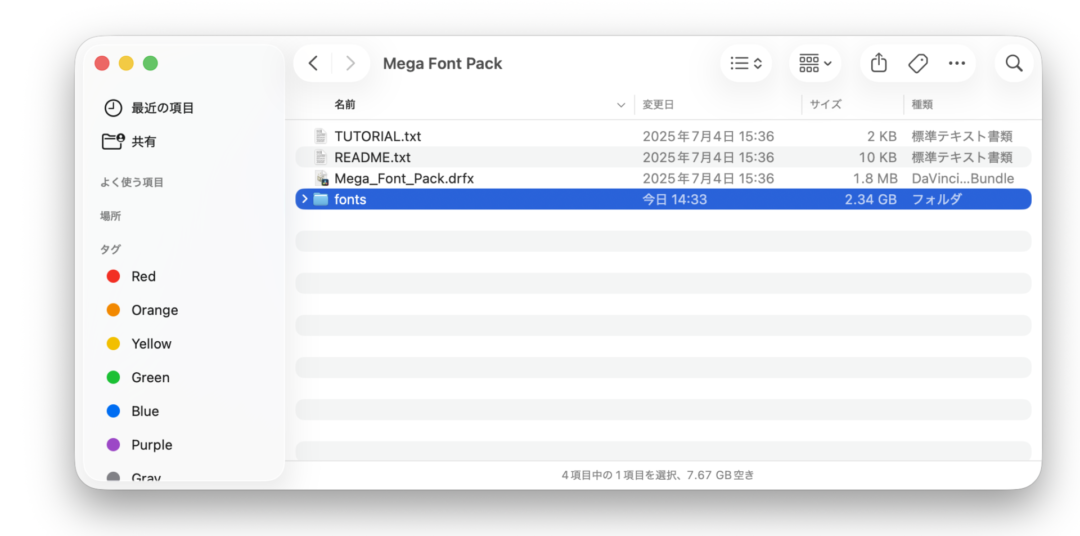
② Double-click the “〇〇〇〇.otf” or “〇〇〇〇.ttf” files
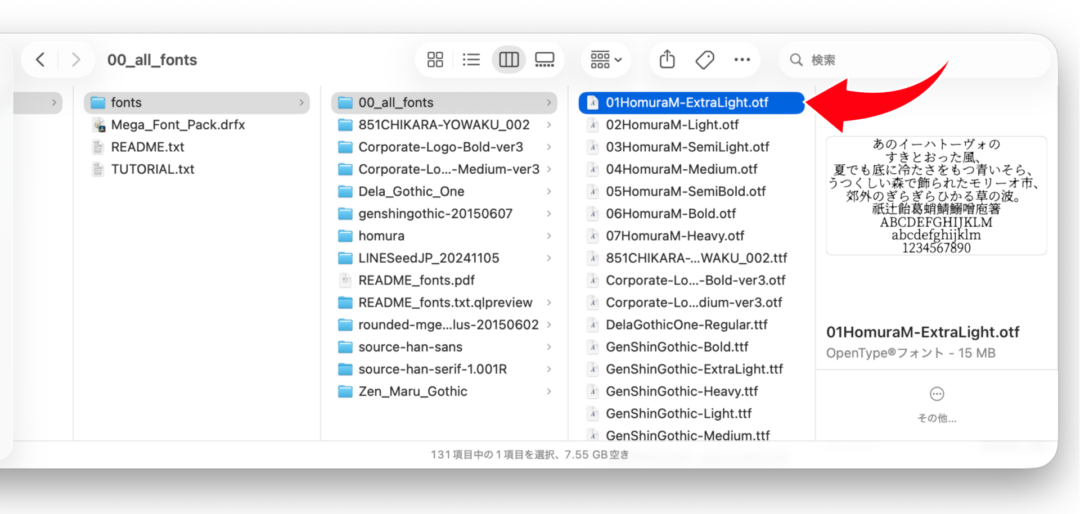
* The “00_all_fonts” folder contains all redistributable font files together.
③ Click Install to finish
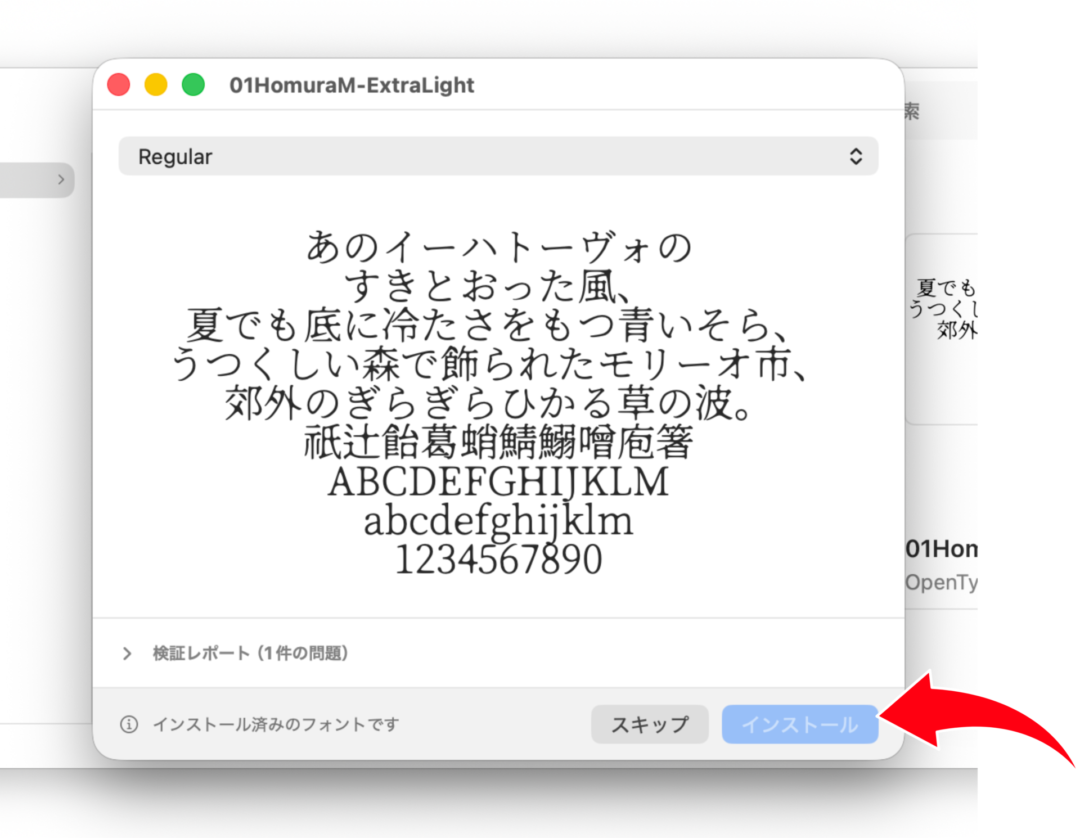
* On Windows, right-click the .ttf/.otf file and choose “Install”
In most cases, you only need to install the plugin (.drfx file) and the fonts it needs before you can start using it in DaVinci Resolve.
Some products also require you to place a script file, so check the steps below if that applies to you.
4. Placing the script file
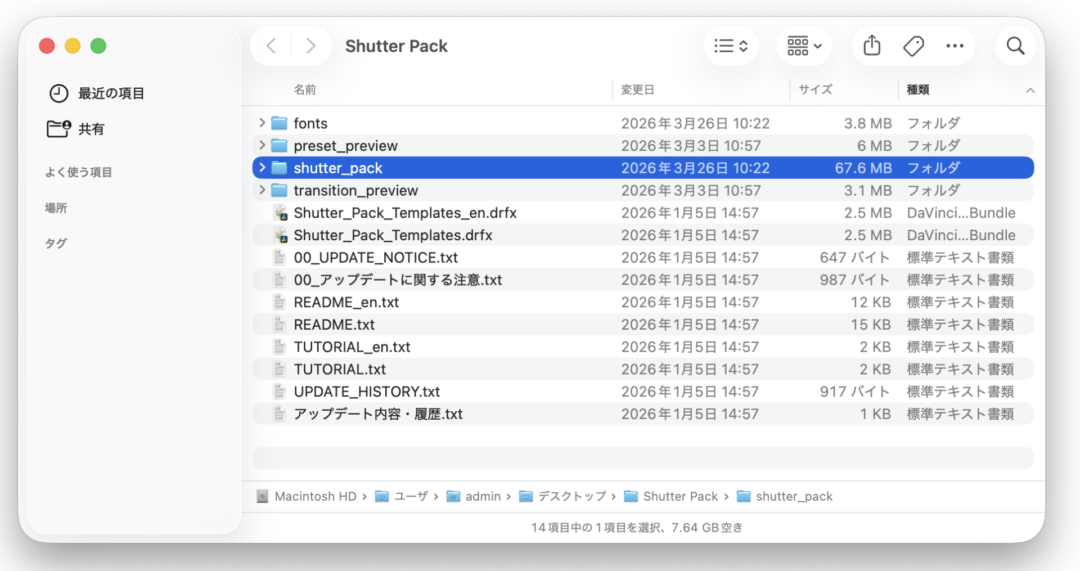
“Shutter Pack” includes a folder named “shutter_pack”, which you need to copy to a specific folder on your computer.
[On Mac]
① Open Finder, press Cmd + Shift + G, then enter the path below.
~/Library/Application Support/Blackmagic Design/DaVinci Resolve/Fusion/Scripts/Comp/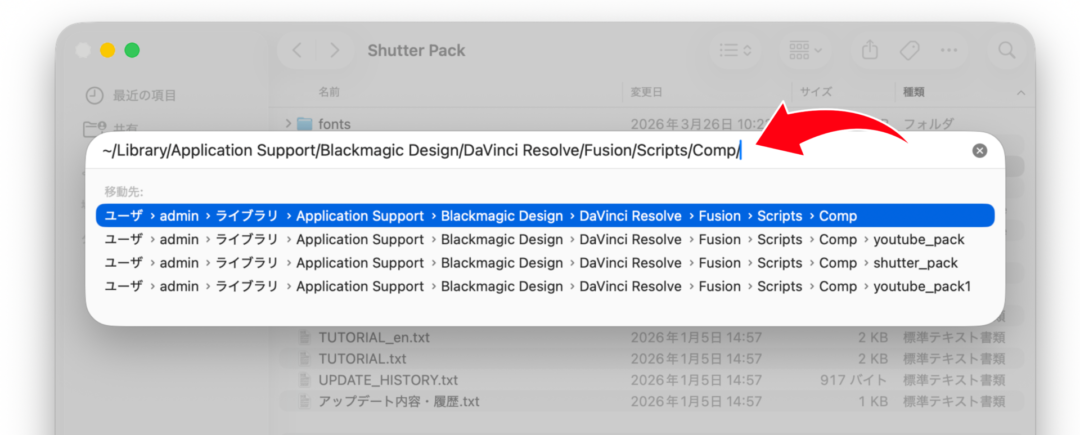
② Copy the downloaded “shutter_pack” folder into the “Comp” folder as it is.
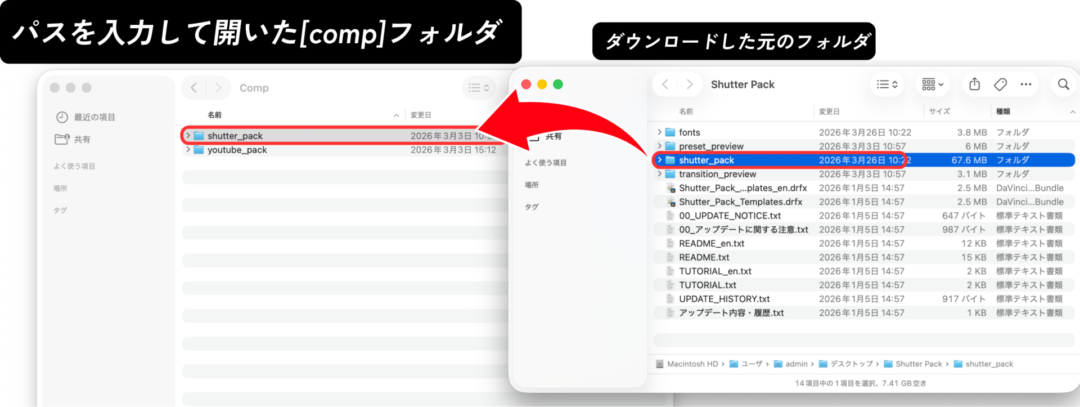
* If the folder does not exist, create it.
[On Windows]
① Open File Explorer, type the path below into the address bar and go there.
C:\Users\[your username]\AppData\Roaming\Blackmagic Design\DaVinci Resolve\Support\Fusion\Scripts\Comp\② Copy the downloaded “shutter_pack” folder into the “Comp” folder as it is.
* If the folder does not exist, create it.
* If AppData is not visible, enable “Hidden items” from the View tab in File Explorer.
That’s it — your Visual Park plugin is installed.
The required steps can differ by product, so check the included “READ ME” as well.
We hope you put Visual Park’s plugins to work in your everyday video work.